Showing posts with label tutorial. Show all posts

Monday, June 2, 2014

Storenvy: Adding top navigation tabs

This tutorial will help you customize your navigation links by adding tabs to the top of your page. You can see what they will look like at Bean Sprout Boutique.

STEP 1: Edit your HTML

1. To find your HTML codes, go to Store Admin>Design>HTML Pages >Layout>Using Custom HTML
2. Look for:  </div><!-- end #header --> Below that, is where you'll paste the new code.
3. Select and Copy/Paste the following code to your html.

<div id="topnav">
<ul id="tabnav">
<li class="tab1"><a href="http://www.yoururlhere.com/">Home</a></li>

<li class="tab1"><a href="http://www.yoururlhere.com/gallery">Gallery</a></li>
</ul>
</div>


4. Save changes.

*TIP: I only made tabs for the Home page and Gallery page. You can make as many as you wish. Just copy/paste the code and change the tab# and url for each.


STEP 2: Edit your CSS

1. To find your CSS codes, go to Store Admin>Design>CSS Mode
2. Copy and Paste the following code on your CSS page.

#topnav {
width: 200px;
margin: 0px 0px -9px 220px;
}

ul#tabnav {
text-align: left;
list-style-type: none;
}

ul#tabnav li {
display: inline;
background-color: #fff;
}

ul#tabnav li a {
padding: 7px;
color: #fff;
background-color: #70920a;
margin-right: 0px;
text-decoration: none;
}

ul#tabnav a:hover {
color: #3E4D02;
background-color: #fff;
}


3. Edit to fit your store theme and colors.
4. Save changes and preview your store.


My top navigation tabs look like this. You can see the entire page at Bean Sprout Boutique.


Tuesday, November 12, 2013

Storenvy: Linking your store to your blog with a page tab

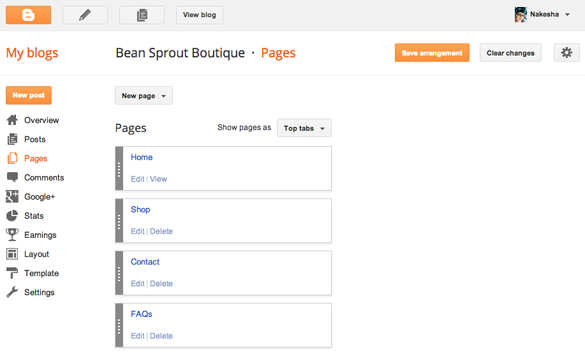
A great way to get your blog followers to your Storenvy shop, social media, or any other page you may have, is to add page tabs to your blog. It's an easy way for followers to access your store. This tutorial will show you how to add page tabs to your blog. I've added page tabs for my Bean Sprout Boutique shop, my contact page, and FAQ.


STEP 1: Select Pages from your Blogger Dashboard

1. Sign in to your blogger account and select your blog.
2. In the left column, click on Pages


STEP 2: Select New Page


1. Selecting Blank Page will open a page that looks just like creating a post. Compose your page, add HTML, photos, etc.


2. Selecting Web Address will open a dialog box. Page title is what will appear on the tab. Web address is the page you wish to link to.


STEP 3: Position tabs

1. Select the drop-down menu where it says Show pages as.
2. Select Top tabs, Side links, or Don't show
3. If you have created more than one tab, you can shuffle them in the order you wish them to appear. Click the gray bar and drag up and down.


STEP 4: Save your page

1. When you have finished creating your tabs and arranging them, make sure to click Save arrangement.


Your blog page should now be displaying the new tabs you've created. Click on each one to make sure they link to the assigned page without error. If you have any questions, please let me know: nakesha@beansproutboutique.com.

Tuesday, August 6, 2013

Crochet: The Magic Ring Tutorial

The Magic Ring has changed the way I crochet. I hated that little unsightly hole left in the center when crocheting in the round. I didn't want a hole in the top of my hats. No matter how tightly I started off my chain, I could never fully close that darn circle.

Sure, there are times when having an open hole may be desirable, for instance, when making granny squares, flowers, and other motifs. But I really wanted a way to control the opening. Then I found the adjustable ring. Possibly, my favorite crochet technique ever. Warning: Once you try it, you may never go back to the other methods.

Magic Ring Tutorial

I'll be demonstrating using double crochet and will assume you know how to chain, slip stitch, and double crochet.

Step 1: Begin by making a loop, putting the tail of your yarn behind your working yarn. Leave at least a three-inch tail. As you become familiar with this method, you'll be able to leave a shorter tail if desired.


Step 2: Hold your strands where they overlap and insert your hook from front to back through the ring. Pull up one loop on your hook.


Step 3: Ch 3 (*counts as dc; see Note)


Step 4: Find a comfortable way to hold your ring as you begin to work dcs. Dc into the ring. Make certain to crochet over the tail as you go. Continue working as many dcs as needed for your pattern.


Step 5: Pull the tail to draw the ring closed. If your tail has looped around a few times, untwist it before pulling tight.


Step 6: Slst into your first dc when finished to begin next round. How tightly you draw your ring closed is up to you and the desired effect you hope to achieve.


*Note: Often, I do not count the ch 3 as a stitch when double crocheting. It mostly depends on the type and thickness of yarn I'm using. Thick and chunky yarns, I count ch 3 as a stitch. Thin yarns, I do not count ch 3 as a stitch. Use your own judgement as to what looks the best for your project.

I hope you enjoy this technique as much as I do! Please feel free to contact me at nakesha@beansproutboutique.com with any questions or clarifications. Happy hooking. :)


Tuesday, July 23, 2013

Storenvy: Opening social links in new window

**UPDATE: This tutorial was made pre-Cooper theme update.**


By default, the Social links in the footer of your page with redirect the user to those sites in the same window, causing them to leave your site. If you'd like those links to open in a new window, this tutorial will show your how. It looks like a lot of code, but we'll only be adding target="_blank" to existing code. My navigation looks like the image below. You can see the entire page at Bean Sprout Boutique.


STEP 1: Edit your HTML

1. To find your HTML codes, go to Store Admin>Design>HTML Pages>Layout>Using Custom HTML
2. Look for:  <div id="footer"> Scroll down and you'll see the code for the Social navigation.
It will look like this:

<li>
{% if store.places != blank  %}
  <span class="footer-large">SOCIAL</span><br/>
  <ul>
  {% if store.twitter_url %}<li><a href="{{store.twitter_url}}" class="footer-social-link twitter"></a></li>{% endif %}
  {% if store.facebook_url %}<li><a href="{{store.facebook_url}}" class="footer-social-link facebook"></a></li>{% endif %}
  {% if store.tumblr_url %}<li><a href="{{store.tumblr_url}}" class="footer-social-link tumblr"></a></li>{% endif %}
  </ul>
{% endif %}
</li>


3. Copy the following code and paste it inside the <a> tag.

    target="_blank"

4. Your code should look like this:

<li>
{% if store.places != blank  %}
    <span class="footer-large">SOCIAL</span><br/>
   <ul>
   {% if store.twitter_url %}<li><a href="{{store.twitter_url}}" class="footer-social-link twitter"
target="_blank"></a></li>{% endif %}
   {% if store.facebook_url %}<li><a href="{{store.facebook_url}}" class="footer-social-link facebook" 
target="_blank"></a></li>{% endif %}
   {% if store.tumblr_url %}<li><a href="{{store.tumblr_url}}" class="footer-social-link tumblr" 
target="_blank"></a></li>{% endif %}
   </ul>
 {% endif %}
 </li>


5. Save changes and preview your store.

--------

STEP 2: Add your other Social media links

Storenvy uses an image for the Twitter, Facebook, and Tumblr links. Someday, I may create and host my own icons for Pinterest, Instagram and Blogger to use in the Social links, but for now, I just have text.

1. To find your HTML codes, go to Store Admin>Design>HTML Pages>Layout>Using Custom HTML
2. Look for:  <div id="footer"> Scroll down and you'll see the code for the Social navigation. It will look like this:

<li>
{% if store.places != blank  %}
   <span class="footer-large">SOCIAL</span><br/>
   <ul>
   {% if store.twitter_url %}<li><a href="{{store.twitter_url}}" class="footer-social-link twitter" target="_blank"></a></li>{% endif %}
   {% if store.facebook_url %}<li><a href="{{store.facebook_url}}" class="footer-social-link facebook" target="_blank"></a></li>{% endif %}
   {% if store.tumblr_url %}<li><a href="{{store.tumblr_url}}" class="footer-social-link tumblr" target="_blank"></a></li>{% endif %}
   </ul>
 {% endif %}
</li>


3. Add <br /> after the last Tumblr link. Copy the following code and paste it after your Tumblr link.

<li><a href="http://pinterest.com/yourname" target="_blank">Pinterest</a> </li><br />
<li><a href="instagram.com/yourname" target="_blank">Instagram</a> </li><br />
<li><a href="http://yourname.blogspot.com/" target="_blank">Blogger</a> </li>


4. Your finished code should look like this:

 <li>
{% if store.places != blank  %}
   <span class="footer-large">SOCIAL</span><br/>
   <ul>
   {% if store.twitter_url %}<li><a href="{{store.twitter_url}}" class="footer-social-link twitter" target="_blank"></a></li>{% endif %}
   {% if store.facebook_url %}<li><a href="{{store.facebook_url}}" class="footer-social-link facebook" target="_blank"></a></li>{% endif %}
   {% if store.tumblr_url %}<li><a href="{{store.tumblr_url}}" class="footer-social-link tumblr" target="_blank"></a></li>{% endif %}
<br />
   <li><a href="http://pinterest.com/yourname" target="_blank">Pinterest</a> </li><br />
   <li><a href="instagram.com/yourname" target="_blank">Instagram</a> </li><br />
   <li><a href="http://yourname.blogspot.com/" target="_blank">Blogger</a> </li>
   </ul>

{% endif %}
</li>


5. Save changes and preview your store.

*TIP: Your links may look different depending on the social media sites you use.

Here is what my finished footer looks like. You can see the entire page at Bean Sprout Boutique.


Storenvy: Adding navigation headlines

This tutorial will help you customize your Navigation, in the new Cooper theme, by adding headlines to the categories in your sidebar. My navigation looks like the image below. You can see the entire page at Bean Sprout Boutique.


STEP 1: Edit your HTML

1. To find your HTML codes, go to Store Admin>Design>HTML Pages>Layout>Using Custom HTML
2. Look for:  <div id="sidebar"> Below that, you'll see the code for the navigation.
3. Copy the following code.

   <hr/>
   <h3>Categories</h3>
   <hr />


4. Look for:  <ul id="nav"> and paste the code above it.
5. Repeat above  <ul id="buttons"> and <ul id="places">
6. Save changes and preview your store.

*TIP: I moved my "places" above my "buttons."

--------

STEP 2: Edit your CSS

1. To find your CSS codes, go to Store Admin>Design>Theme>CSS Mode
2. Copy and Paste the following code to your CSS page.

   #sidebar h3 {
    margin: 5px 0px 5px 0px;
    color: #70920a;
   }


3. Edit the color to fit your store theme.
4. Save changes and preview your store.


*TIP: Consider mobile devices when selecting your headline color. The navigation background on mobile is a dark gray. Dark colors may not show up very well.

Monday, July 15, 2013

Storenvy: Moving navigation (collections) from top to the sidebar

**UPDATE: This tutorial was made pre-Cooper theme update.**


This tutorial will help you customize your Navigation links and move them from the top to your sidebar. You can see what they will look like at Bean Sprout Boutique.


STEP 1: Edit your HTML

1. To find your HTML codes, go to Store Admin>Design>Theme>Edit Pages >Layout>Using Custom HTML
2. Look for:  <div id="container"> Below that, you'll see the code for the navigation.
3. Select and Cut the following code from your html.

<ul id="nav">
          {% for nav_item in collections.all %}
          <li id="collection_{{nav_item.id}}_link" {% if nav_item == collection %} class="current" {% endif %}>
            <a href="{{nav_item.url}}">
              {{ nav_item.name }}
              <span class="collection_count">({{ nav_item.product_count }})</span>
            </a>
          </li>
          {% endfor %}
        </ul>

4. Look for:  <div id="sidebar"> and paste the navigation code below it.
5. Save changes and preview your store.


*TIP: If you have an avatar on your page and want the navigation after it, look for <div id="avatar"> and paste the navigation code after the </div>.


STEP 2: Edit your CSS

1. To find your CSS codes, go to Store Admin>Design>Theme>Edit Styles>CSS Mode
2. Find the following code on your CSS page. If it isn't there, then Copy and Paste the following code on your CSS page.

/*: Navigation Links :*/

#nav {
background-color: #FFFFFF; 
overflow: hidden;
margin: 0;
padding: 0 5px 10px;
display: block;
width: 200px;
}

#nav li {
float: left;
}

#nav li a {
color: #70920a;     /*: Change to fit your color scheme :*/                    
display: block;
margin: 0 4px 4px 0;
padding: 5px 10px;
font-weight: bold;   /*: Change to normal is you don't want them bold. :*/
font-size: 18px;   /*: Change if you want the font larger or smaller :*/
}

#nav li.current a {
  color: #703C0A;          /*: This is the color that will appear when you are on the current page. Change to fit your color scheme. :*/          
}

#nav li a:hover {
background-color: #FFFFFF;        
color: #926312;         /*: Change to a different color for the rollover :*/
text-decoration: none;
}

#nav li span.collection_count {
font-size: 11px;
vertical-align: 1px;
font-weight: normal;
}

3. Edit to fit your store theme and colors.
4. Save changes and preview your store.


My navigation looks like this. You can see the entire page at Bean Sprout Boutique.


Thursday, July 11, 2013

Storenvy: Adding and Customizing Buttons

**UPDATE: This tutorial was made pre-Cooper theme update.**


There is a wonderful tutorial on Jotting Down Life about customizing your Storenvy storefront. She covers how to change fonts, move the navigation to the sidebar, edit your buttons, and hide tags.

This tutorial will elaborate on adding and customizing your Social Media links in your sidebar navigation. You can see what they will look like at Bean Sprout Boutique.


STEP 1: Edit your HTML

1. To find your HTML codes, go to Store Admin>Design>Theme>Edit Pages >Layout>Using Custom HTML
2. Look for:   <div id=”buttons”>
3. Add links to your pages in the following format.
 
<div id="buttons">
  <a href="http://www.facebook.com/yourname" target="_blank">Facebook</a>
  <a href="http://www.instagram.com/yourname" target="_blank">Instagram</a>
  <a href="http://yourname.tumblr.com/" target="_blank">Tumblr</a>
  <a href="http://www.twitter.com/yourname" target="_blank">Twitter</a>
  <a href="http://www.pinterest.com/yourname" target="_blank">Pinterest</a>
  <a href="{{ pages.contact.url }}" class="contact_us">Contact</a>
  <a href="{{ pages.faq.url }}" class="faqs">FAQs</a>
</div>  <!-- end #buttons -->


4. Save changes and preview your store.

*TIP: Adding target="_blank"> will allow the links to open in a new window.


STEP 2: Edit your CSS

1. To find your CSS codes, go to Store Admin>Design>Theme>Edit Styles>CSS Mode
2. Copy and Paste the following code on your CSS page.

/*: Sidebar Navigation Buttons :*/

#buttons {
position: relative;
-moz-border-radius: 5px;   /* This creates the rounded corners. */
-webkit-border-radius: 5px;  /* This creates the rounded corners. */
text-align: center;
font-weight: bold;
font-size: 14px;
}

#buttons a {

color: #fff;    /* This is the text color. */
background: #70920a;   /* Change to your choosen theme color. */
display: block;
border: 1px solid #d5d5d5;
margin-bottom: 5px;
padding: 10px;
}

#buttons a:hover {

color: #fff;   /* This is the text color. */
background-color: #3E4D02;    /* Change to different color for rollover effect. */
background-image: none;
text-decoration: none;
margin-bottom: 5px;
padding: 10px;
}


3. Edit to fit your store theme and colors.
4. Save changes and preview your store.


My buttons look like this. You can see the entire page at Bean Sprout Boutique.